> ## Documentation Index
> Fetch the complete documentation index at: https://photocli.com/llms.txt
> Use this file to discover all available pages before exploring further.
# Get Started with photo-cli: Archive Photos in Minutes
> Run your first photo-cli archive command to lay your photos out by year/month/day, hash-stamp every file, deduplicate, index everything in a local SQLite database, and expose the archive to AI assistants over MCP.
This guide walks you through installing photo-cli, running your first `archive` command, and connecting the resulting archive to an AI assistant over MCP. By the end, you will have a `[year]/[month]/[day]/` folder of hash-stamped photos, a SQLite index, one album per country/city — and an MCP server for your AI assistant to query & open photos conversationally.
Follow the [Installation](/installation) guide, then verify:
```bash theme={null}
photo-cli --version
```
```bash theme={null}
photo-cli archive \
--input /path/to/source \
--output /path/to/archive \
--reverse-geocode OpenStreetMapFoundation \
--openstreetmap-properties country city \
--auto-reverse-geocode-album \
```
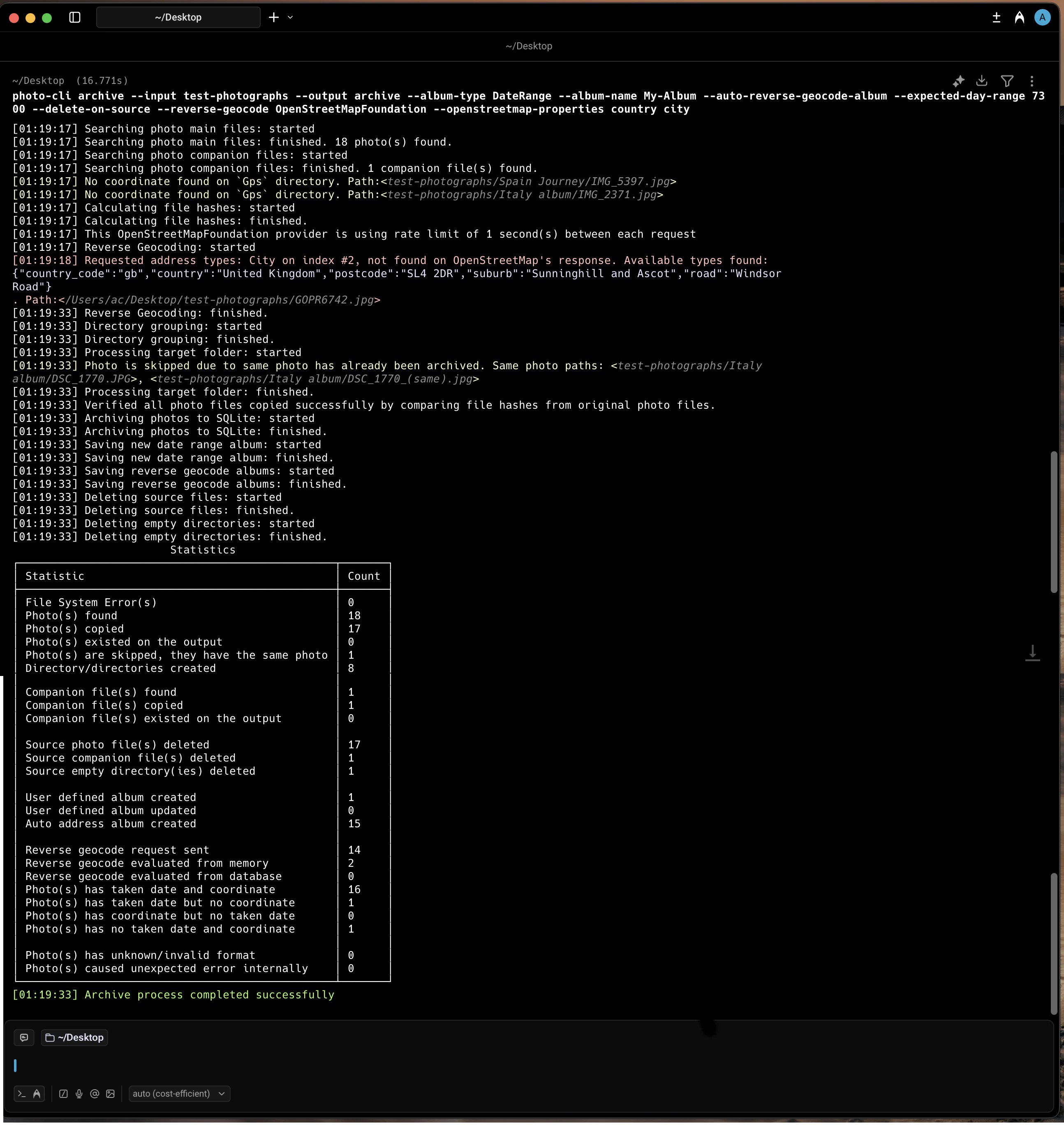 The command discovers photos and their companion files, reads EXIF metadata (date + GPS), and reverse-geocodes coordinates via OpenStreetMap with in-memory deduplication. It then organizes files into a year/month/day/ layout with SHA1-stamped names, deduplicating identical content and routing dateless photos to a fallback folder.
After copying, it verifies each file by re-hashing, indexes everything (paths, dates, coordinates, addresses, SHA1) into completely local file based database, and builds per-location albums from the geocoded address levels.
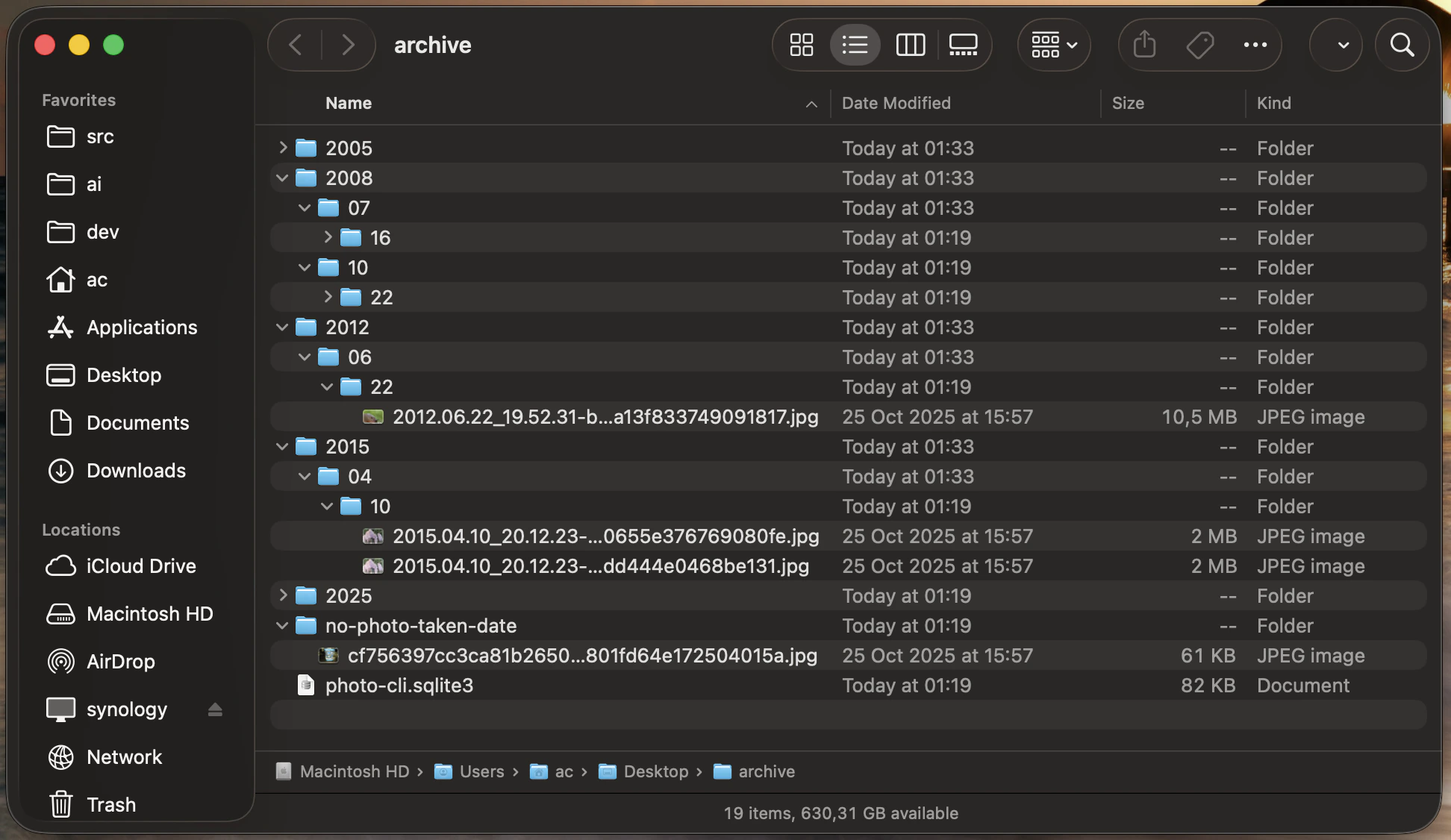
Open the archive folder. You will find photos laid out as `[year]/[month]/[day]/yyyy.MM.dd_HH.mm.ss-{sha1}.ext`, byte-for-byte duplicates skipped automatically, photos with no taken date in a `no-photo-taken-date/` subfolder, and a `photo-cli.sqlite3` database at the root indexing every photo, address, and album.
The command discovers photos and their companion files, reads EXIF metadata (date + GPS), and reverse-geocodes coordinates via OpenStreetMap with in-memory deduplication. It then organizes files into a year/month/day/ layout with SHA1-stamped names, deduplicating identical content and routing dateless photos to a fallback folder.
After copying, it verifies each file by re-hashing, indexes everything (paths, dates, coordinates, addresses, SHA1) into completely local file based database, and builds per-location albums from the geocoded address levels.
Open the archive folder. You will find photos laid out as `[year]/[month]/[day]/yyyy.MM.dd_HH.mm.ss-{sha1}.ext`, byte-for-byte duplicates skipped automatically, photos with no taken date in a `no-photo-taken-date/` subfolder, and a `photo-cli.sqlite3` database at the root indexing every photo, address, and album.
 Query the SQLite index to open photos by date or list every album that was created:
```bash theme={null}
photo-cli list --input /path/to/archive --type PhotosByDate --year 2008 --month 10
```
On macOS matches open in Preview; on Linux/Windows paths are printed to stdout so you can pipe them to your viewer of choice (e.g., `xargs xdg-open` on Linux).
Query the SQLite index to open photos by date or list every album that was created:
```bash theme={null}
photo-cli list --input /path/to/archive --type PhotosByDate --year 2008 --month 10
```
On macOS matches open in Preview; on Linux/Windows paths are printed to stdout so you can pipe them to your viewer of choice (e.g., `xargs xdg-open` on Linux).
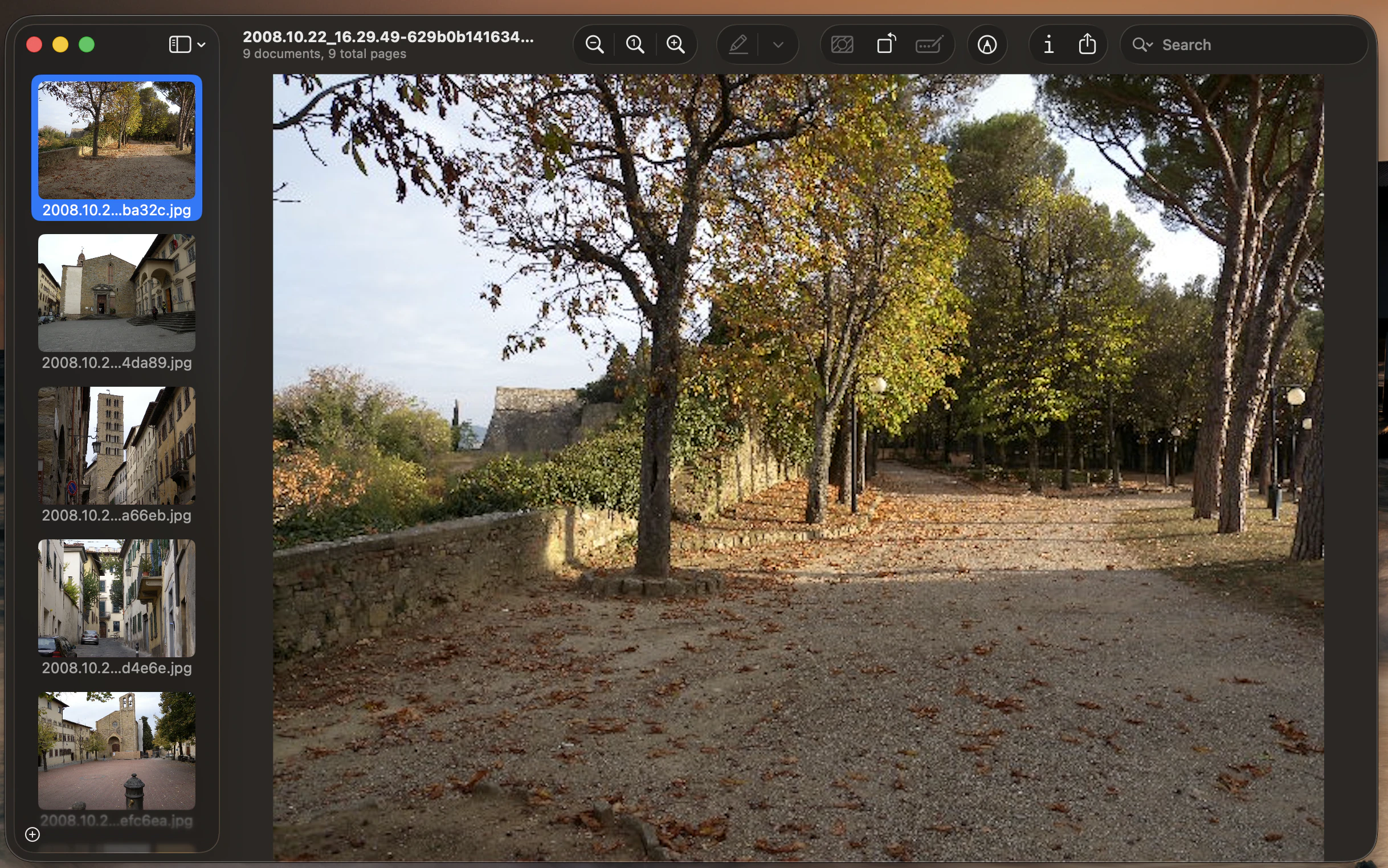 `photo-cli mcp` starts a [Model Context Protocol](https://modelcontextprotocol.io/) stdio server that exposes the archive's SQLite database to AI assistants. Tools like Claude Code, Claude Desktop, and VS Code can then search by date, location, album, or proximity to a GPS coordinate — and even open matching photos in your default viewer. See the [mcp command reference](/commands/mcp) for the full tool list.
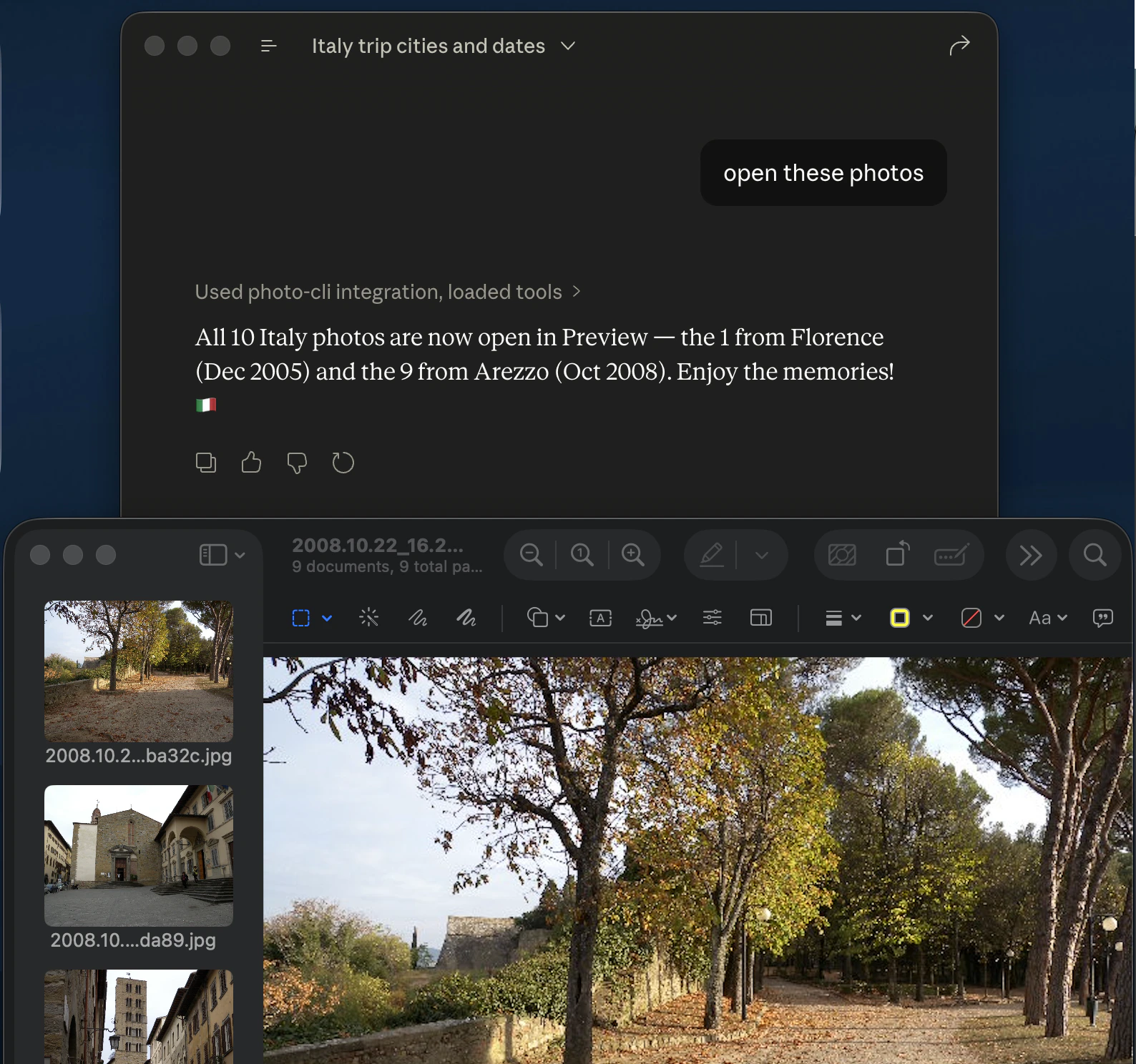
Once connected, ask the assistant things like *'What cities and when did I went to Italy?'*, *'show me everything taken within 5 km of 43.78, 11.23'*, or *'open all photos in the Italia-Firenze album'*.
`photo-cli mcp` starts a [Model Context Protocol](https://modelcontextprotocol.io/) stdio server that exposes the archive's SQLite database to AI assistants. Tools like Claude Code, Claude Desktop, and VS Code can then search by date, location, album, or proximity to a GPS coordinate — and even open matching photos in your default viewer. See the [mcp command reference](/commands/mcp) for the full tool list.
Once connected, ask the assistant things like *'What cities and when did I went to Italy?'*, *'show me everything taken within 5 km of 43.78, 11.23'*, or *'open all photos in the Italia-Firenze album'*.
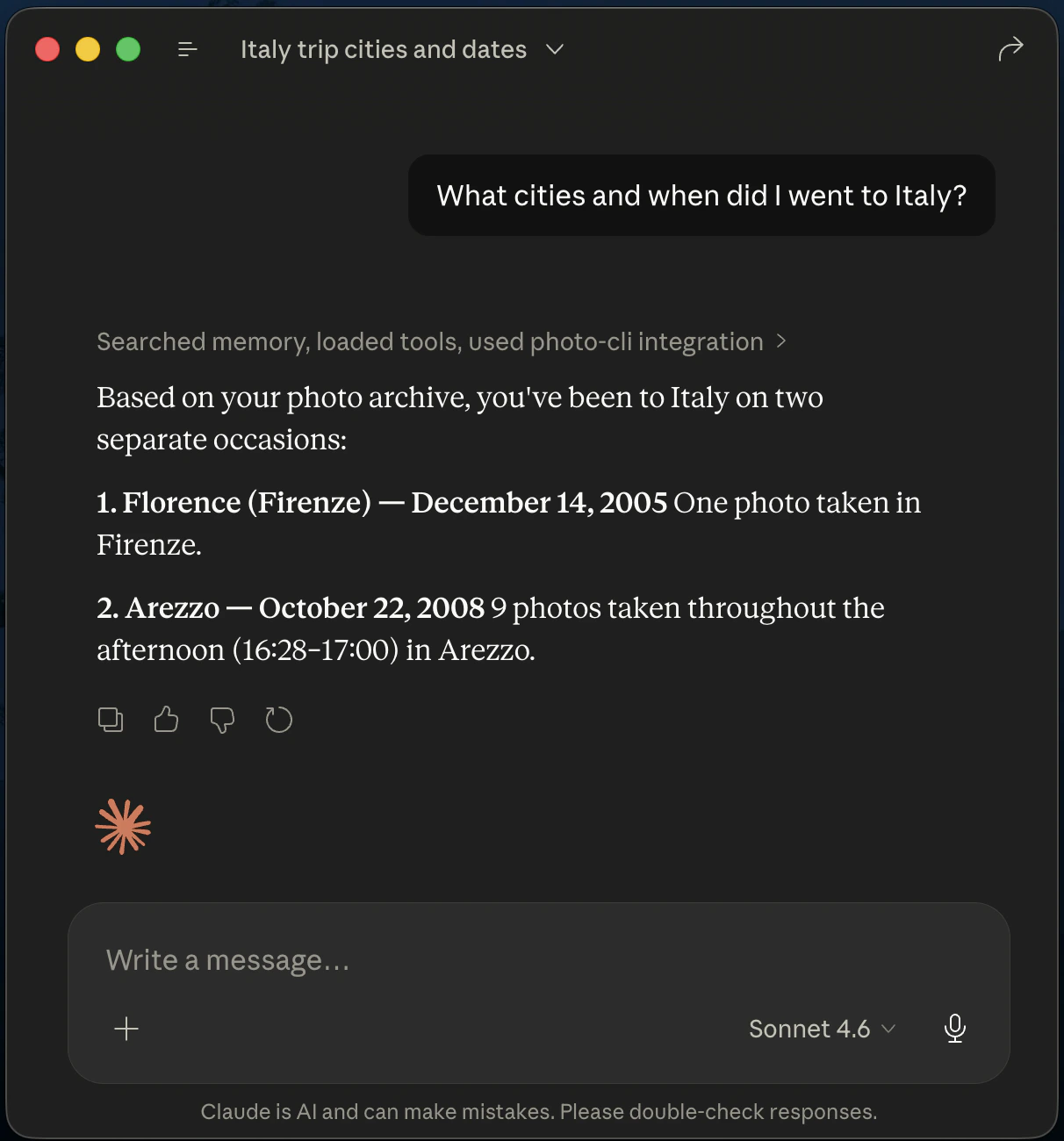 When you ask the assistant to *open* photos (rather than just list them), the MCP server hands the matching files off to your OS image viewer. Today this is wired up for macOS only — matches open directly in Preview. On Linux and Windows the `open_photos_*` tools are not active yet; use the `list_photos_*` tools and pipe the returned paths to your viewer of choice.
 ## What's next
Explore all commands: copy, archive, list, info, address, settings, and mcp.
Install photo-cli on macOS, Windows, or Linux in under a minute.
See real before-and-after examples for common organization strategies.
Every argument the `archive` command accepts.
## What's next
Explore all commands: copy, archive, list, info, address, settings, and mcp.
Install photo-cli on macOS, Windows, or Linux in under a minute.
See real before-and-after examples for common organization strategies.
Every argument the `archive` command accepts.